One App, Many Homes: How Onwords Auto-Switches Smart Homes by Wi-Fi
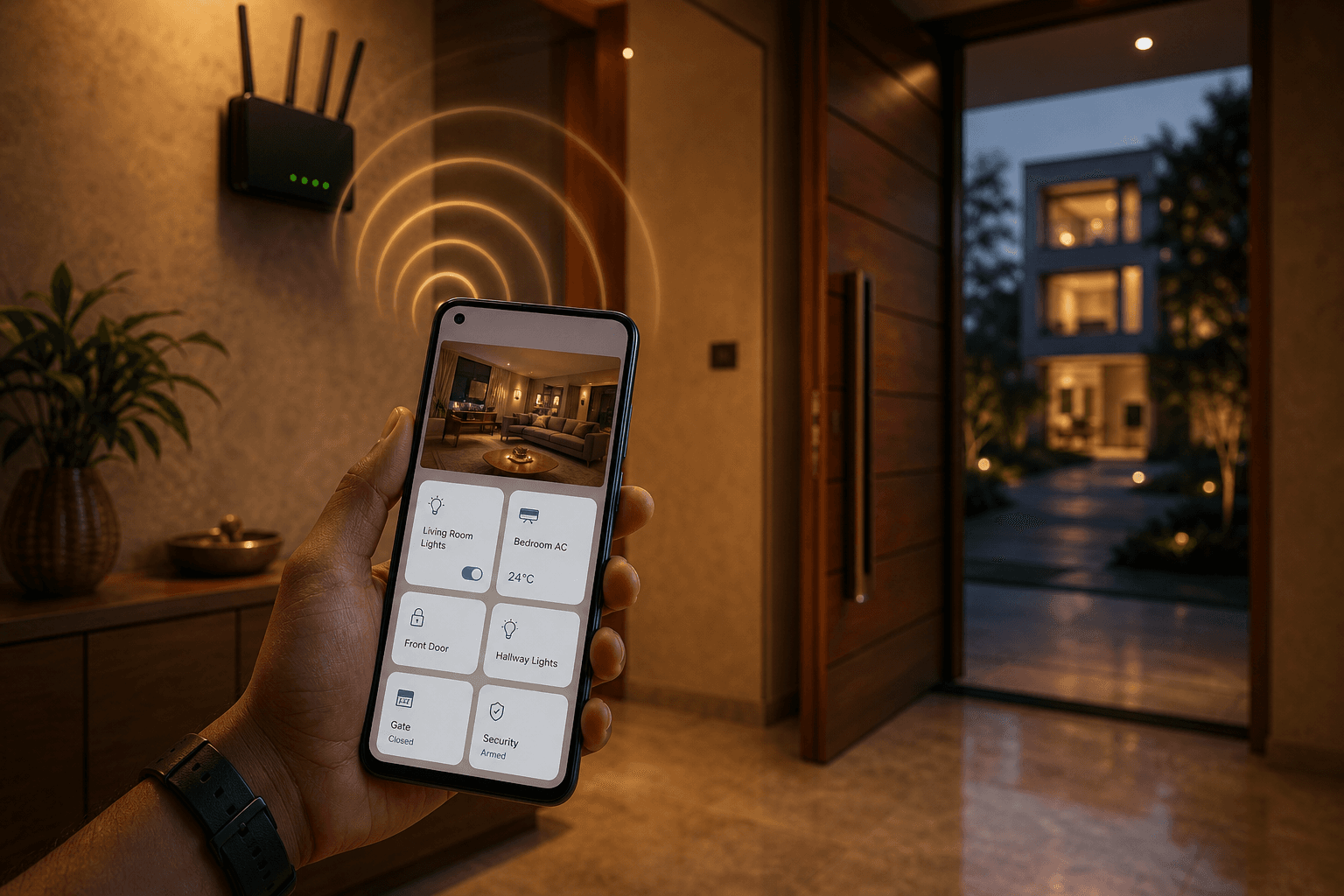
If you own more than one home, you have felt the small daily annoyance: you walk into your second house and the app is still pointing at the first one, so the wrong lights and scenes are one tap away. The Onwords Living Home app now fixes this on its own. It quietly learns which Wi-Fi belongs to which home, and the moment your phone joins that network, the app opens that home. No menus, no guessing.
The multi-home problem
Owners of a city apartment plus a farmhouse, or a second villa, live inside one app that holds several homes. Switching by hand is easy to forget, and a forgotten switch means the tap you make lands on the wrong house. Lights come on somewhere you are not standing, a scene runs in a room you left hours ago. It is a small thing, but it repeats every time you move between properties. That is the friction this feature quietly removes.
What auto-switch does
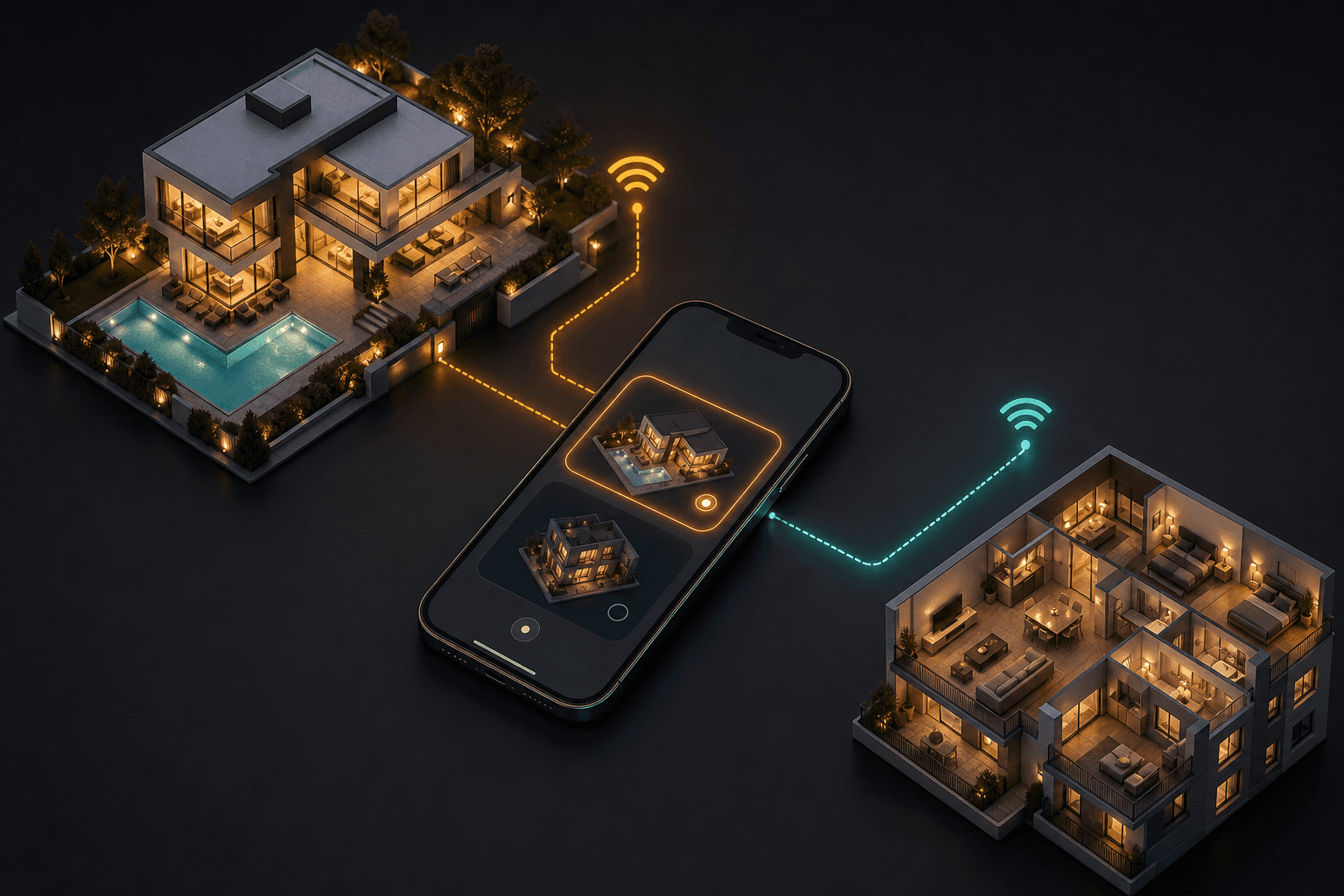
When your phone joins a home's Wi-Fi, the app makes that home active by itself. It happens on app open, when you return to the app, and the moment your phone changes network. A small on-screen note confirms the switch, so you always know which home you are looking at. And if you deliberately pick a home by hand, the app respects that choice until your phone moves to a different network.
- Active home follows the Wi-Fi you are actually on
- Reacts on open, on resume, and on every network change
- An on-screen note tells you the moment it switches
- A manual choice always wins until you leave that Wi-Fi
How it works
Underneath, the logic is simple, and it all runs on your phone. Four steps, in order: it learns the network, matches it precisely, switches the active home, and steps back the moment you make a choice yourself.
Same app, same login. The home you are standing in is the one that opens.
- 01
Learn the home Wi-Fi
Open the Onwords Living Home app while on your home's own Wi-Fi and let it connect once. The app remembers that network as this home's.
- 02
Match the network
The app identifies the network by the router's unique hardware ID first, and the Wi-Fi name as a backup, so two homes with the same name are never confused.
- 03
Switch automatically
When your phone joins a known home network, the app makes that home active and reconnects, on app open, on resume, and on any Wi-Fi change.
- 04
Keep your manual choice
If you pick a home by hand, the app keeps that choice until your phone moves to a different Wi-Fi network.
Mark a Wi-Fi by hand
You do not have to wait for the app to learn. In Settings, Homes, Home Wi-Fi networks, you can link a network to a home yourself, review every network you have linked, and remove any you do not want. It is handy to set a home up before you ever visit, to fix a wrong learn, or to add every access point in a large mesh home.
- Add current Wi-FiTap it to link the network you are on to the current home.
- See every linked networkEach home shows the Wi-Fi networks it recognises.
- Remove any you do not wantPrune a wrong match or an old network in one tap.
Private by design
The matching happens on your phone, not on a server. The app only reads the Wi-Fi name after you allow location permission (both iOS and Android require that permission before an app can see a network name), and the home-to-Wi-Fi memory never leaves the device. If you would rather not use it at all, one switch in Settings turns the whole feature off.
Who it is for
This is for anyone running two or more Onwords Living Homes on one phone: a primary residence and a farmhouse, a family home and a rental, a home and a small office. One login, every home, and the right one already open when you walk in. If you are weighing a second Living Home, our products page is the place to start, and Iniyal can point you to the right setup.
FAQ
It matches the Wi-Fi your phone is connected to against the networks it has learned for each home. It uses the router's unique hardware ID first and the Wi-Fi name as a backup, so the right home opens even if two homes share a network name.